A different route into phishing
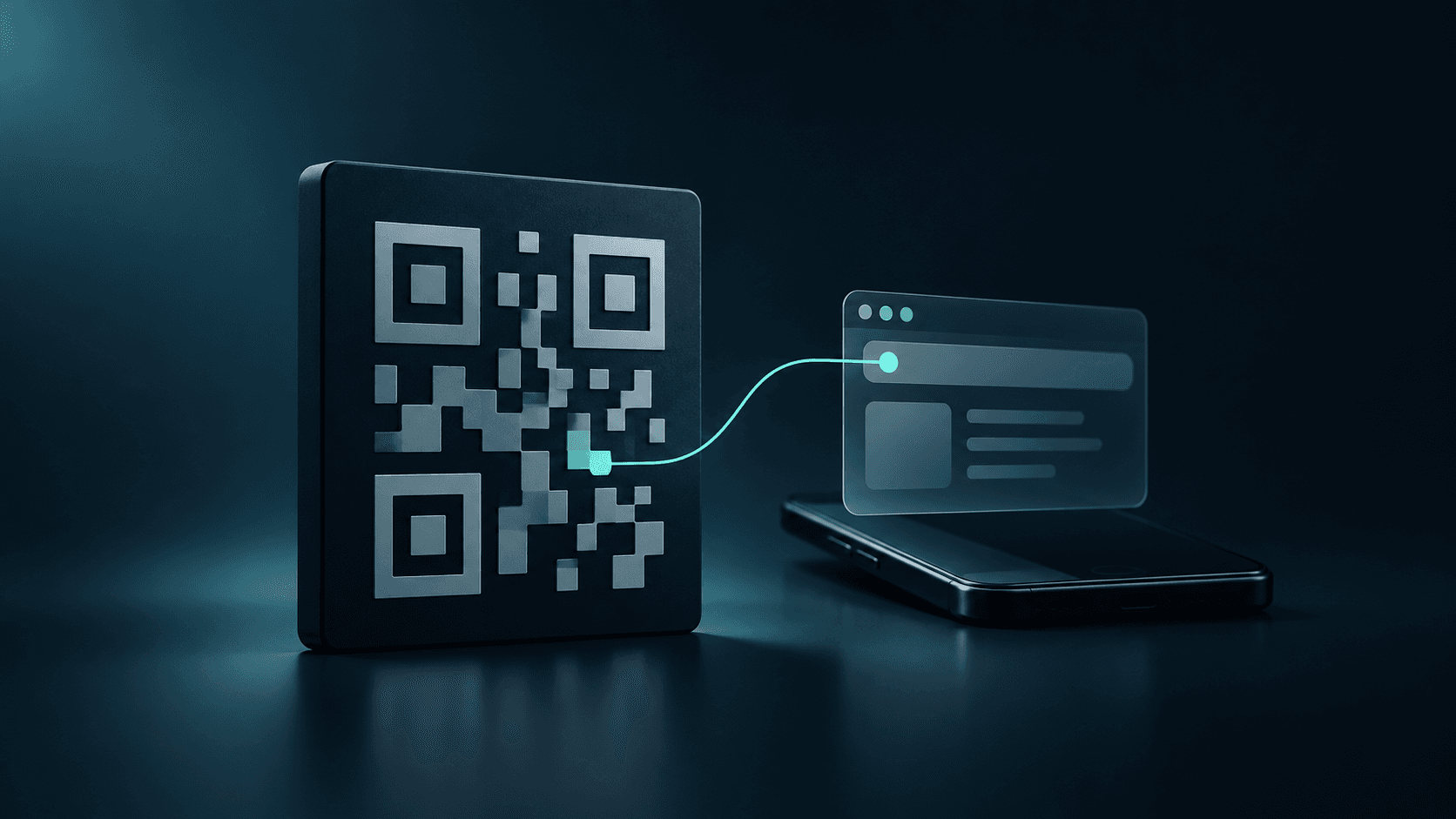
Quishing uses a QR code as part of a phishing attempt. The code might lead to an imitation of a familiar service, a form that collects personal information or another stage of a scam. The code itself is not a distinct type of malware. Its role is to lead you somewhere an attacker can exploit your trust.
A QR code carries data. It can contain an address, text or instructions for a particular app. Some codes never open a website, and recognizing the pattern with a camera does not send a password. Reading the code, opening what it contains and taking an action afterward are separate events with different risks.
Consider where the code came from, where it leads and what the destination asks you to do. A code on a ticket you expected has a different context from one in an unsolicited account message or on a sticker in a public place. Recognizing the format tells you little about the destination.
You see the pattern before you see the address
A written link gives you a chance to see the domain before opening a page. With a QR code, you mostly see a pattern and its accompanying instructions. You need a camera or reader to see what is encoded. By then, trusting the document or the place where you found it may already have shaped your decision.
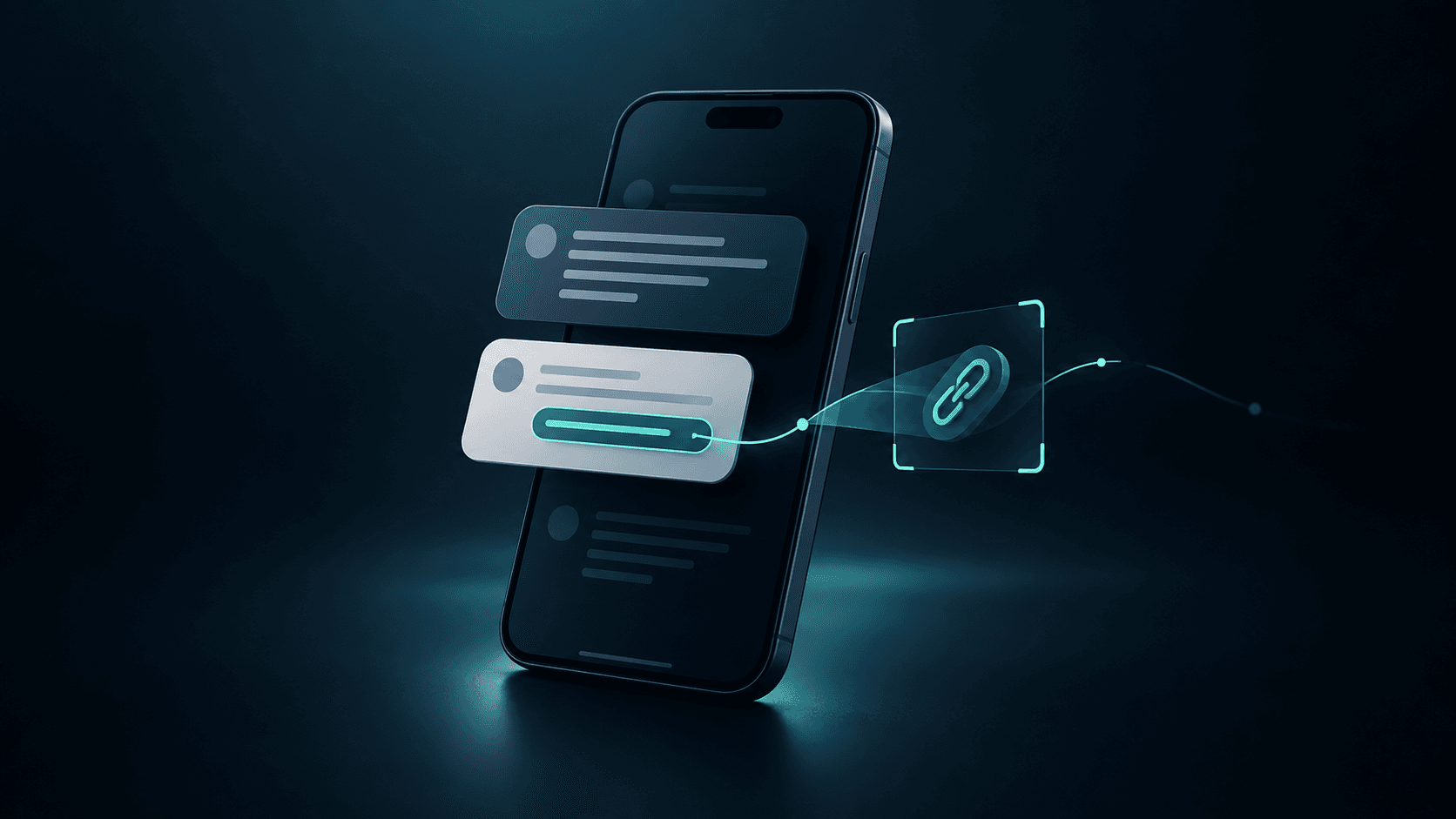
The UK NCSC points out that a QR code can conceal a link in a message and move the interaction to a personal phone. Check the decoded address. If the reader offers a preview, take a moment to read it before opening the link.
Nobody should have to judge the legitimacy of a dense pattern by eye. The color, border, embedded logo and print quality say nothing about the address. People need a clear description of the purpose and another way to use the service if they decline to scan.
In a message, a document or on a sticker
A code may appear in an email, attachment, presentation or company announcement. Its surroundings make it look like part of a familiar process. Pay attention to requests involving access, such as confirming an account, opening a document or changing how you sign in. A QR code may be presented as a convenient way to finish the task on your phone.
In physical spaces the location supplies the story. You expect a code on a parking meter, leaflet or noticeboard to do something specific. Check whether a sticker covers another one and whether the named operator matches the service you intended to use. Before paying, check the recipient and the transaction description.
Organizations can reduce uncertainty by printing a readable address and the name of the responsible team beside a code. Offer another way to do the same task. Employees who can open a document directly in a familiar system can verify it independently of a graphic in a message.
Why email protection needs image analysis
A filter that examines only written links may never see an address encoded in a QR image. It must identify the code, decode it and assess the URL. Attachment handling and the ability to read less legible images matter too.
Email security products can address QR threats. Microsoft describes how Defender for Office 365 extracts URLs from QR codes and analyzes images and message context. Capabilities depend on the product and configuration. Ask which scenarios a product covers before assuming QR codes bypass its filters.
Another boundary appears after delivery. An employee reads the email on a computer but opens the address on a phone. The devices may have different security controls. A test should cover that transition as well as the scan performed when the attachment arrived.
The first domain may not be the destination
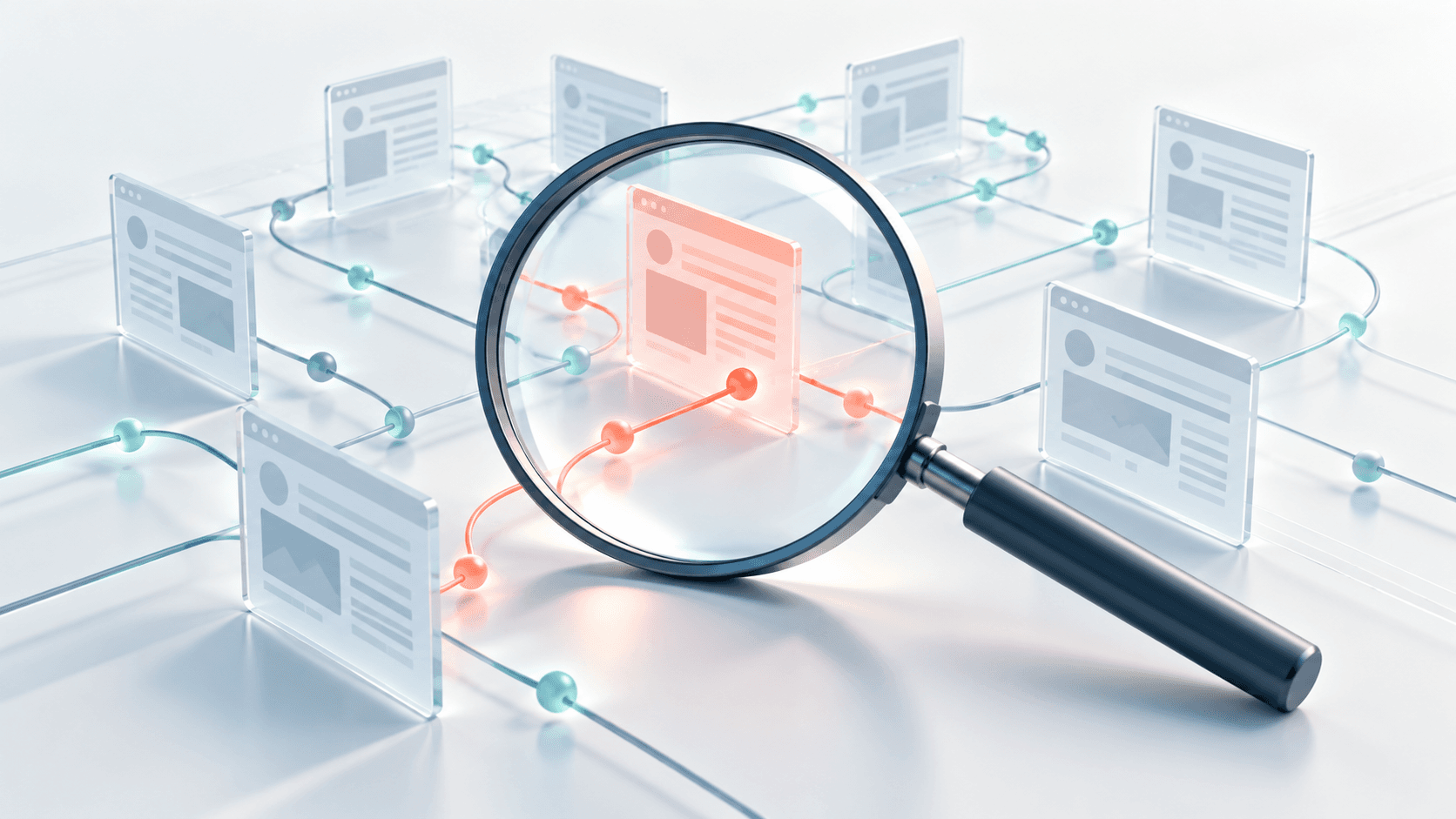
The URL encoded in a QR code can redirect a browser elsewhere. Legitimate services use redirects to change content and measure campaigns. In a scam, the same mechanism can obscure where the eventual form will appear. Checking only the first host gives an incomplete picture.
Check the site where you will actually sign in or pay before supplying any information. If the destination changes in a way you cannot explain, stop and use a familiar route to the service. A professionally prepared document is no reason to finish an unexpected transaction.
For technical teams, distinguish the entry URL, the redirect chain and the final URL. Record when the assessment took place because the online content can change.
Related at APT Research and evaluation methods.
Decisions look different on a phone
The address bar has little space on a phone, and parts of the interface disappear as you scroll. Switching between camera, browser and app can hide the original message. Design procedures for someone who cannot compare two full-sized windows side by side.
A code that opens a website is different from one that links a device or session. CERT Polska documented a scam in which a pretext involving a code linked a messaging service to someone else’s device. Read the prompt after a scan to see whether it opens information or grants access.
Requests to install an app, grant unexpected permissions or authorize a new device deserve their own check. None follows naturally from viewing a document. Employees should know how to verify such requests before they face one in a suspicious interaction.
Source CERT Polska on a QR code scam.
Questions before signing in or paying
Assess what the code asks you to do after you read it. These questions apply whether you scan for yourself or for work. An absence of obvious problems is no guarantee, but a mismatch is reason enough to stop.
- Were you expecting this document, payment or request to confirm access?
- Does the decoded address belong to the service mentioned in the message?
- After a redirect, do the domain and purpose still fit the task?
- Is the site asking for a password or card details when you only wanted to view information?
- Is the app asking you to link a device, grant permissions or authorize something you did not initiate?
- Can you check the request in a familiar system without scanning the code?
Reducing everyday risk
Preview the contents in a trusted reader, such as your phone’s camera. Open a familiar service independently when you need to sign in. If a document seems suspicious, ask the sender through a separate, established channel whether they sent it. Avoid using contact details found only in the questionable message.
Check the displayed address before opening a link from a QR code. If you open the site, the Anti Phishing app can block a domain in its threat database and, in supported browsers, a full URL identified as dangerous. It does not evaluate QR images or offer manual link scanning. Keep the operating system up to date and check requests to share information.
If you disclosed information, tell support exactly what you entered or approved. “I scanned a code” could mean you opened a site, signed in or linked a device. The distinction helps support choose the right response. There is no need to return to the suspicious site to recreate the steps.
Related at APT Protecting against dangerous sites and domains on your phone.
What an organization should review
Review quishing across channels. An email arrives, a QR code moves the interaction to a phone, and the attacker targets access to a service. When different teams own each step, the whole sequence can go untested. Bring email, device and identity administrators into the same review.
Review QR handling in email security, personal device rules, authentication methods and reporting procedures. In training, practice stopping an unfamiliar workflow when the request no longer makes sense. Recognizing an unjustified request is more useful than teaching people to fear every code.
At APT, Enterprise Security Center reports help organizations check Android protection status. This visibility complements URL analysis and access controls. Organizations still need email protection and a way to verify payment recipients. The process should take the user from seeing the decoded address, through assessing it, to knowingly approving the action they intended.
Related at APT Monitoring device protection across an organization.